The short answer
Install the Twinfig plugin in Figma, paste the site’s URL, and choose Import page for one page or Scan site for many. Pick the pages you want and import. Each page arrives as real layers with text, auto layout, components, variables and text styles, not as a screenshot.
Before you start
- Figma, in the desktop app or the browser
- The Twinfig plugin, signed in
- The Chrome extension, only for pages behind a login or on localhost
Steps
Install the Twinfig plugin
Add Twinfig from the Figma Community and open it in any design file.
Paste the URL
Enter the address of the page or the site’s home page in the plugin.
Choose Import page or Scan site
Import page brings in one URL. Scan site finds pages from the sitemap or by following links and groups them by path, collapsing repetitive templates such as blog posts.
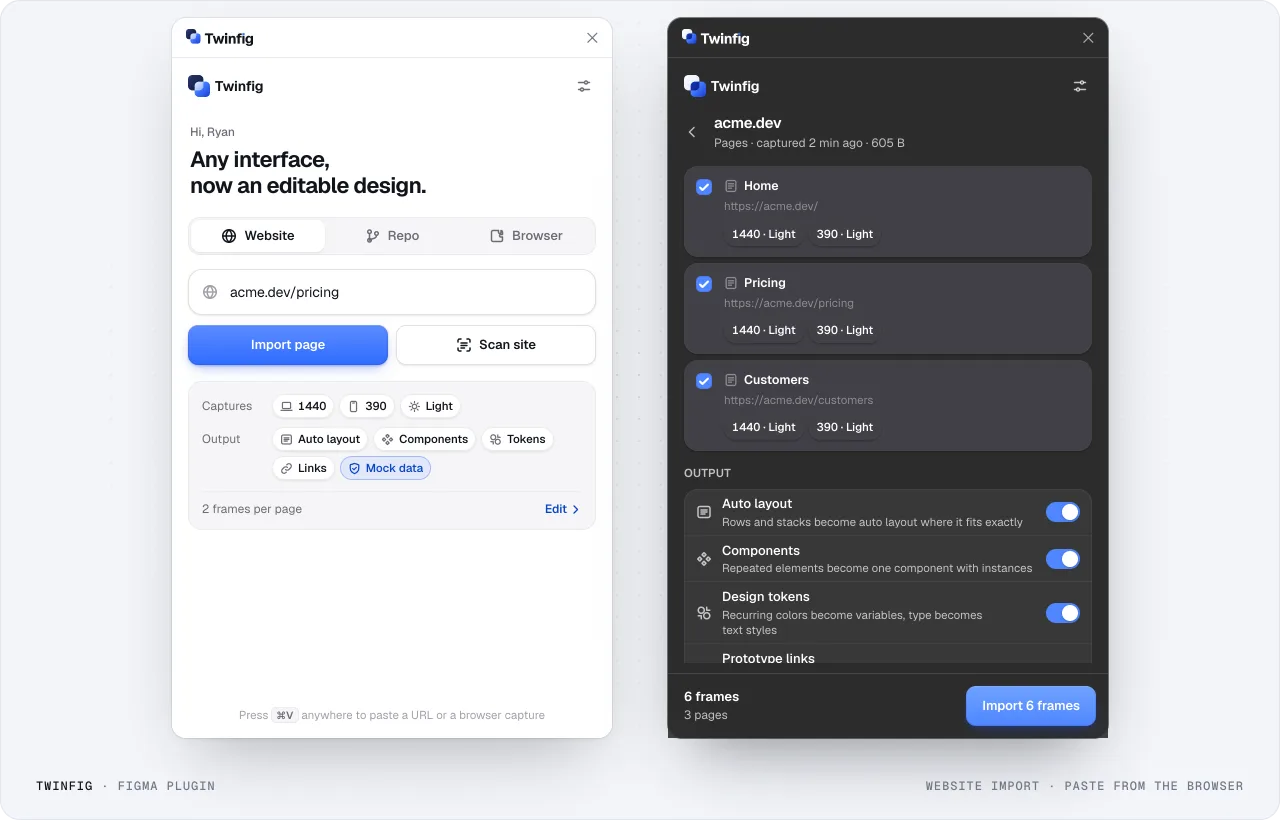
Figma plugin: website importImport one page, or scan the site and pick pages. Each page is captured at every viewport you choose. Pick the pages
Select the pages that matter. They import in one run and are linked as a prototype.
Refine in Figma
Edit text, adjust auto layout, rename components and clean up variables. Everything is real layers.
What you get compared with a screenshot
A screenshot is a single flat image. A Twinfig import reads the rendered page the way a browser does and rebuilds it the way a designer would: text stays as whole text layers with style runs, auto layout is used only where it matches the page exactly, repeated UI becomes components, and colors and type become variables and text styles.
Twinfig drops wrapper elements that only exist for layout and builds in small batches, so a typical marketing page arrives as a few hundred clean layers rather than thousands.
When the page isn’t public
The plugin imports public pages. For logged-in apps, localhost, staging behind SSO and Storybook, use the Chrome extension, which captures in your own browser with your own session. See the guide to importing localhost into Figma.
Only import what you’re allowed to use
Capture interfaces you are authorized to access and reproduce content you have the right to use. Treat third-party sites as research and reference unless you have permission.