The short answer
In the Twinfig extension, switch Data to Mock before you capture. Names, emails, phone numbers, addresses, card numbers and other IDs, handles and avatars are replaced with realistic stand-ins inside your browser before anything reaches the clipboard.
Before you start
- Google Chrome with the Twinfig extension
- Access to the app you want to capture
- The Twinfig plugin open in Figma
Steps
Open the app in Chrome
Sign in as you normally would. The extension uses your own browser session.
Switch Data to Mock
Open the Twinfig popup and set Data to Mock.
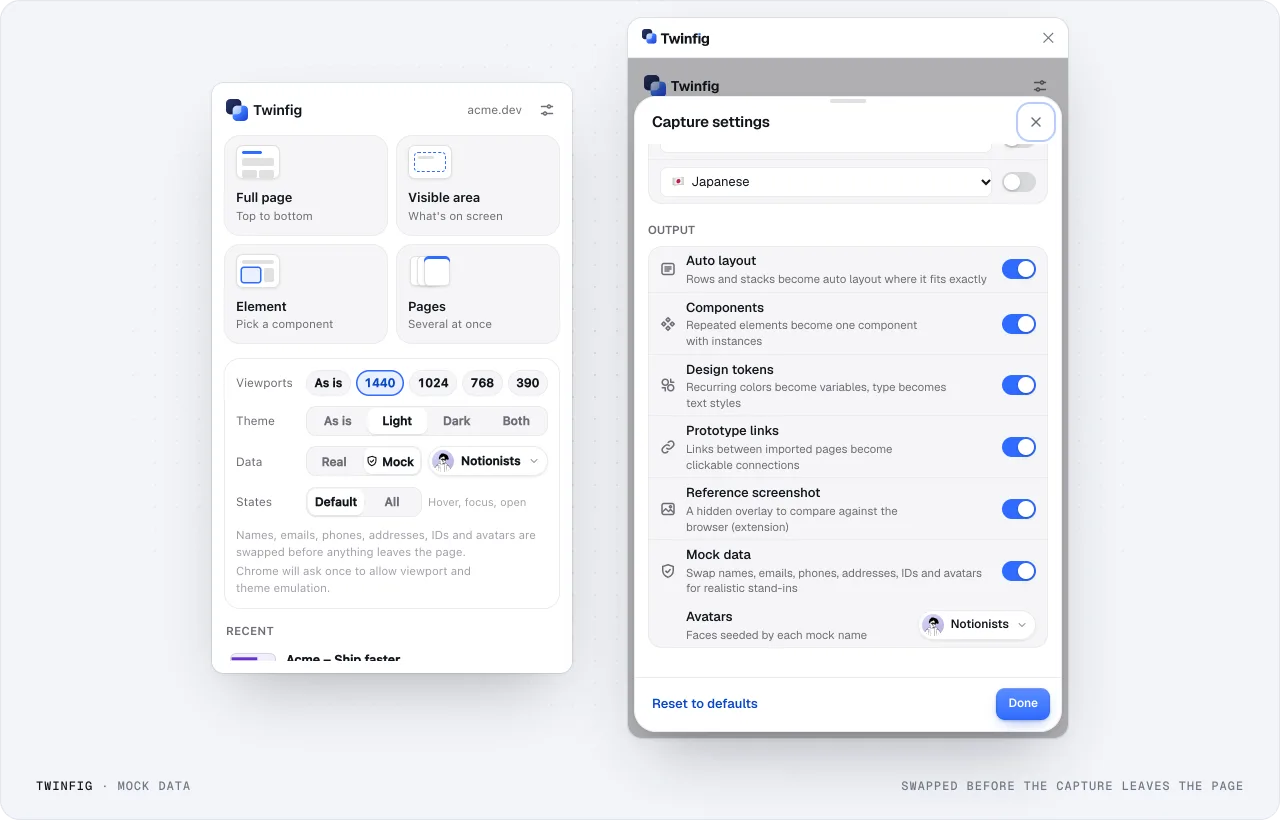
Mock dataPersonal details are replaced in the browser, before the capture leaves the page. Capture
Press ⌥⇧P for the full page or ⌥⇧E to pick an element.
Paste into Figma
Press ⌘V in the Twinfig plugin. The frame arrives with stand-in data.
Review before sharing
Skim the frame as you would any file that started from a real screen.
Consistent stand-ins
Each person keeps one stand-in across every page and viewport, so a flow still reads like one coherent account.
What stays on your device
Captures built with the extension go to your clipboard, your local history and, if you choose, a .twinfig file. The one network call is to DiceBear when mock avatars are on, and it sends only the mock name.