Where Twinfig and Screenshot overlap, and where they don’t.
The short answer
A screenshot in Figma is a flat image: text, spacing and colors cannot be edited, and each viewport or theme is a separate picture. Importing the page with Twinfig gives real text layers, auto layout, components, variables and text styles, so the result can be edited, resized and handed off.
Both do
Pages behind a login, localhost
Twinfig adds
Import a live URL
Pick a single element
Many viewports × light and dark in one run
Repeated UI becomes componentsAcross every page
Colors and type as variables and text styles
Links become prototype connections
Storybook stories to component sets
Mock data for customer informationBefore it leaves the page
Recapture a frame in place
Side by side
Capability by capability.
Twinfig and Screenshot, row for row, from each tool’s public product pages.
Capability
Twinfig
Screenshot
Import a live URL
Yes
As a flat image
Pages behind a login, localhost
Your own browser session
Yes
Pick a single element
Yes
No
Many viewports × light and dark in one run
Yes
One at a time
Repeated UI becomes components
Across every page
No
Colors and type as variables and text styles
Yes
No
Links become prototype connections
Yes
No
Storybook stories to component sets
Yes
No
Mock data for customer information
Before it leaves the page
Captured as is
Recapture a frame in place
Yes
Take a new one
Based on each tool’s public product pages as of October 2026. “Not advertised” means we couldn’t find the capability described, not that it can’t exist. html.to.design and Figma are trademarks of their owners.
Layers, not pixels
Every heading, button and card arrives as a real layer with auto layout where it reproduces the page exactly.
A typical import with hundreds of per-letter layers switches to Twinfig’s clean tree; the headline, an auto layout row and a button instance are inspected in turn.
Drafts / DashboardShare
Typical importTwinfig
Layers412
Group 184
Rectangle 92
S
h
i
p
t
h
e
d
a
s
h
b
o
a
r
d
Group 185
Vector
E
v
e
r
y
m
e
t
r
i
c
Rectangle 93
Group 186
Vector
Vector
Group 184
Rectangle 92
S
h
i
p
t
h
e
d
a
s
h
b
o
a
r
d
Group 185
Vector
E
v
e
r
y
m
e
t
r
i
c
Rectangle 93
Group 186
Vector
Vector
Layers14
Hero
Ship the dashboard.
Every metric your team checks…
Actions
Button · Primary
Button · Secondary
Metrics
MetricCard
MetricCard
MetricCard
Dashboard — 1440
Live · updated 2 min ago
Shipthedashboard.
Every metric your team checks, in one calm view.
Open dashboardInvite team
Revenue$48,210+12%
Customers1,284+4.2%
Churn1.9%−0.3%
Button
VariantPrimary
SizeLarge
MainButton
In depth
The differences that matter day to day.
What you can do with layers
Change copy in real text layers with their style runs intact, resize a frame and watch auto layout reflow it, swap a component everywhere at once, or pick a color variable instead of eyedropping a pixel.
Every width and theme without retaking
A screenshot is one viewport in one theme. One Twinfig capture can cover several widths and both themes, and a selected frame can be recaptured in place when the page changes.
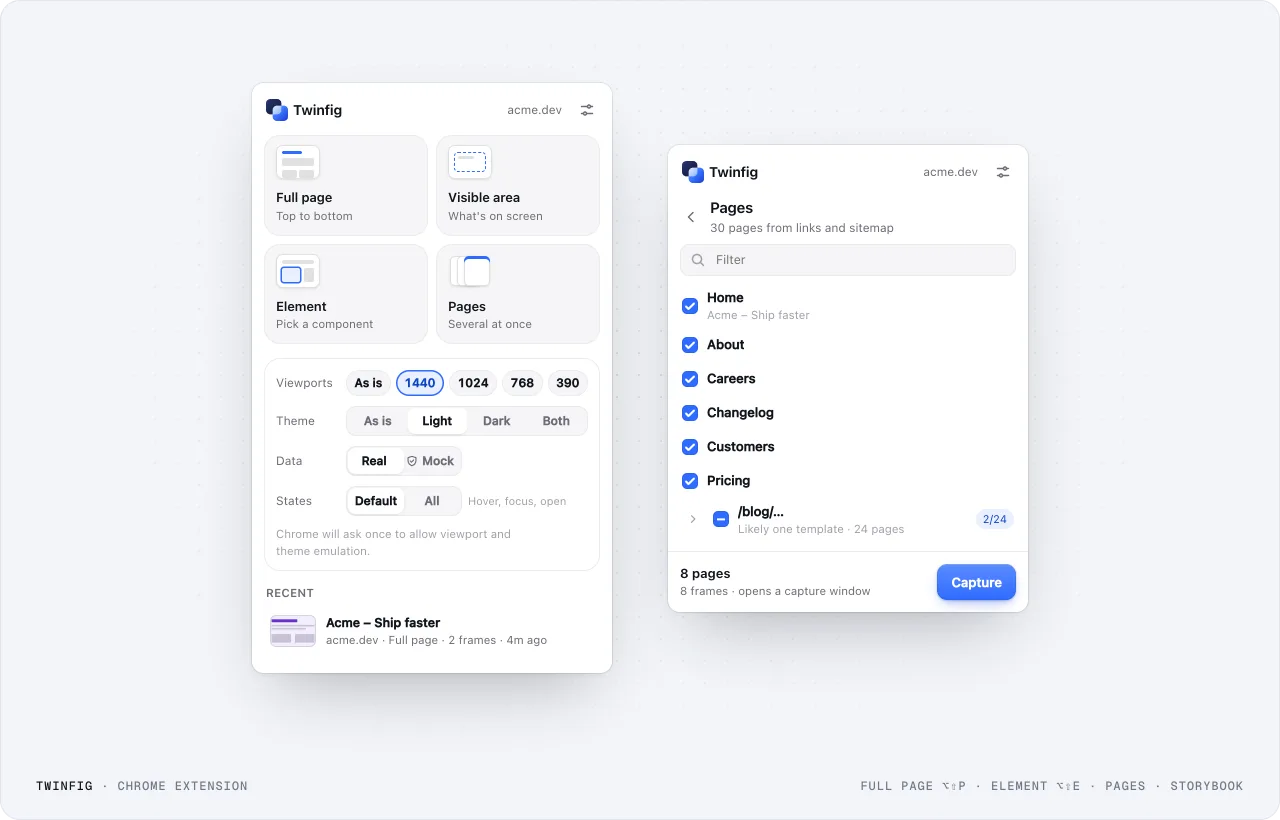
Chrome extension: capture modesFull page, visible area, one element or several pages, at the viewports, themes and states you choose.
Which to pick
Choose the one that fits how you work.
Choose Twinfig if
You will edit the result: change copy, adjust layout or restyle components.
You need the frame to resize, or components to be reusable.
You want colors and type as tokens instead of eyedropping them.
Choose A screenshot if
You only need a reference image next to your work.
You are annotating something that will not change.
FAQ
Questions about choosing.
Is a screenshot ever the right answer?
For a static reference image to annotate, yes. As soon as you need to change anything on it, an editable import saves the rebuild.
Can I import a screenshot into Twinfig?
Twinfig imports the rendered page, not images. Capture the live page and you get layers.