Where Twinfig and Figma’s extension overlap, and where they don’t.
The short answer
Figma’s extension and Twinfig can both capture in your own browser session and pick a single element. Twinfig additionally imports public URLs and whole sites from inside Figma, turns repeated UI into components, creates variables and text styles, links pages as a prototype, builds Storybook component sets and replaces customer data with mock data before the copy.
Both do
Import a live URL
Pages behind a login, localhostFigma’s extension: your own browser session
Pick a single element
Twinfig adds
Many viewports × light and dark in one run
Repeated UI becomes componentsAcross every page
Colors and type as variables and text styles
Links become prototype connections
Storybook stories to component sets
Mock data for customer informationBefore it leaves the page
Recapture a frame in place
Side by side
Capability by capability.
Twinfig and Figma’s extension, row for row, from each tool’s public product pages.
Capability
Twinfig
Figma’s extension
Import a live URL
Yes
Yes
Pages behind a login, localhost
Your own browser session
Your own browser session
Pick a single element
Yes
Yes
Many viewports × light and dark in one run
Yes
Not advertised
Repeated UI becomes components
Across every page
Not advertised
Colors and type as variables and text styles
Yes
Not advertised
Links become prototype connections
Yes
Not advertised
Storybook stories to component sets
Yes
Not advertised
Mock data for customer information
Before it leaves the page
Not advertised
Recapture a frame in place
Yes
Not advertised
Based on each tool’s public product pages as of October 2026. “Not advertised” means we couldn’t find the capability described, not that it can’t exist. html.to.design and Figma are trademarks of their owners.
Every viewport and theme in one capture
Pick widths and themes in the popup and one capture produces every frame, with light and dark as variable modes.
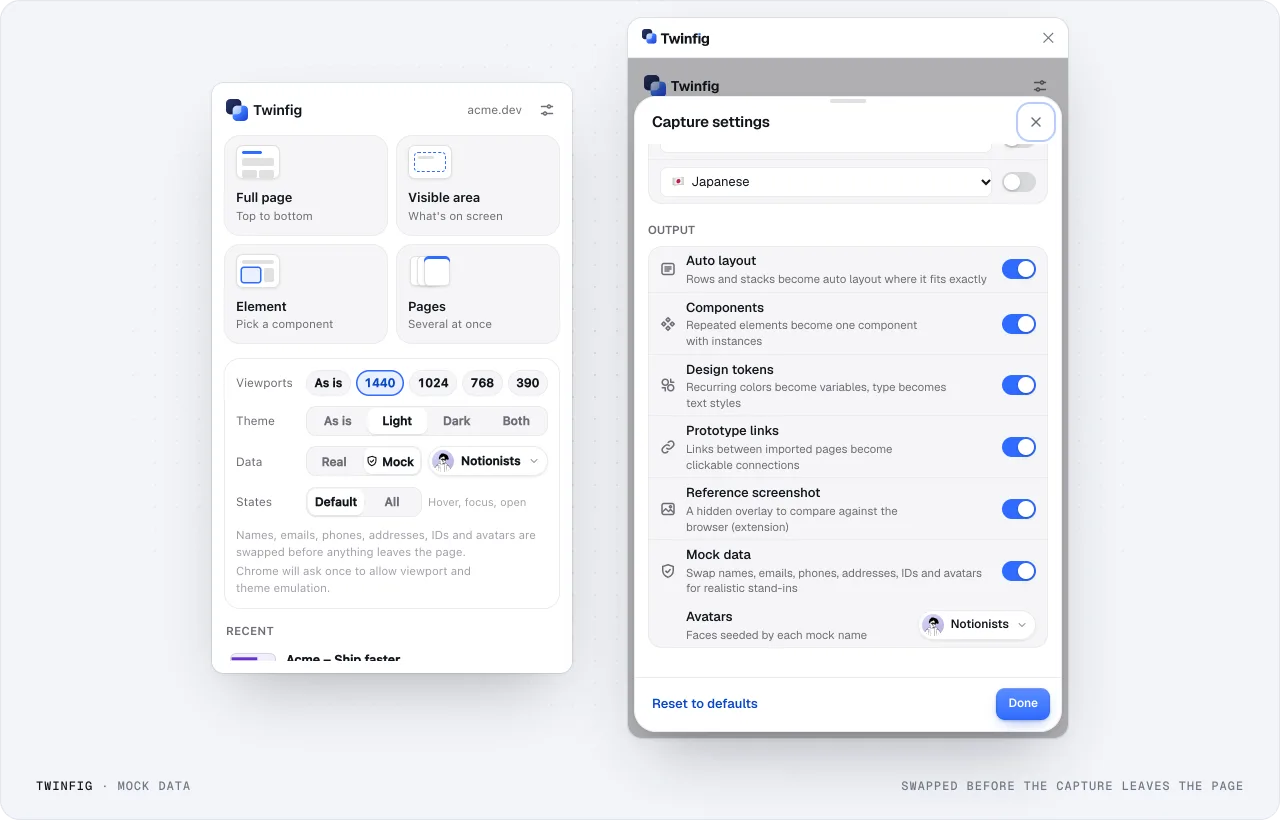
In a logged-in dashboard the Twinfig popup opens, Data is switched to Mock, and the element picker moves from a name to a row to the whole customers table. The captured table arrives in Figma with names, emails, phones and avatars replaced.
Teo Parkteo.park@example.com(206) 555-0176StarterPast due
In depth
The differences that matter day to day.
More than one frame per capture
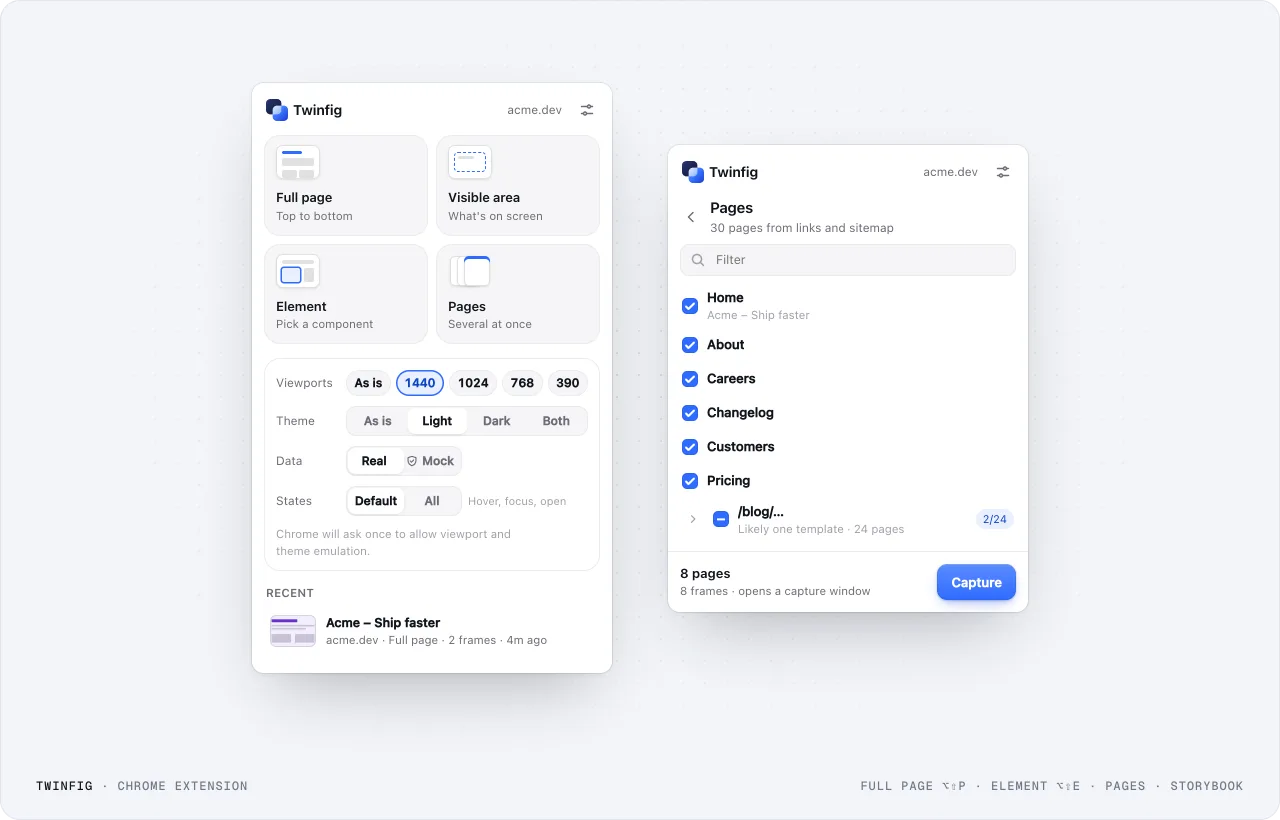
Twinfig’s popup captures the full page, the visible area, one element, several pages of a site or a Storybook, at any mix of 1440, 1024, 768 and 390 and in Light, Dark or both.
Chrome extension: capture modesFull page, visible area, one element or several pages, at the viewports, themes and states you choose.
Interactive states as variants
With States set to All, Twinfig tries Hover, Focus, Active, Open, Disabled, Checked and Selected where they apply and adds each distinct one as a State= variant of one component set.
Mock data before the clipboard
With Data set to Mock, personal details are replaced inside your browser before the capture is bundled, so the clipboard, the capture history and .twinfig files never hold the real data.
Mock dataPersonal details are replaced in the browser, before the capture leaves the page.
Which to pick
Choose the one that fits how you work.
Choose Twinfig if
You want components, variables and text styles created from the capture.
You work from Storybook, or capture many pages and viewports in one run.
You need customer data replaced before it reaches the clipboard.
Choose Figma’s extension if
You want a first-party tool and only need a quick capture.
Your organization requires Figma-published software.
FAQ
Questions about choosing.
Can I use both?
Yes. They are independent tools and a capture from either can live in the same Figma file.
Is Twinfig affiliated with Figma?
No. Twinfig is an independent product. Figma is a trademark of Figma, Inc.