localhost, in one shortcut.Preview deploys and staging, as they run.Storybook, as component sets.Hand designers the real UI.
Build in your editor, capture from Chrome with your own session, and paste into Figma. Frameworks do not matter because Twinfig reads what the browser renders.
Build the component in your editor, capture it from the browser, and paste it into Figma as a design you can keep refining.
A PlanCard React component is typed in an editor while it renders on localhost. The page is captured with Option-Shift-P, pasted into Figma with Command-V, and its corner radius and button fill are then edited in Figma.
PlanCard.tsxpricing.tsxui/Button.tsx
1import { Button } from "./ui/Button";23export function PlanCard({ plan }) {4 return (5 <div className="rounded-2xl border p-6">6 <p className="text-muted">{plan.name}</p>7 <p className="text-4xl">$24<span>/mo</span></p>8 <ul className="mt-4 space-y-2">9 <li>Unlimited captures</li>10 <li>Storybook to component sets</li>11 <li>Tokens and prototype links</li>12 </ul>13 <Button>Start free trial</Button>14 </div>15 );16}
⑂ feat/pricing vite · ready in 212 msLn 16, Col 2 · TSX
localhost:5173/pricing
FieldnoteProductPricingDocs
Pro
$24/mo
Unlimited captures
Storybook to component sets
Tokens and prototype links
Start free trial
[vite] hmr update /src/PlanCard.tsx
Copied to clipboardFull page · paste in Figma with ⌘V
⌥⇧PFull page
Drafts / PricingShare
Layers6
localhost:5173 — 1440
PlanCard
Pro
$24/mo
Features
Button
localhost:5173 — 1440
Pro
$24/mo
Unlimited captures
Storybook to component sets
Tokens and prototype links
Start free trial300 × 38
348 × 356
Button
VariantPrimary
Fill2F6BFF
Radius10
⌘VPaste in Twinfig
Works with your stack
If it renders in Chrome, Twinfig can bring it into Figma.
Next.jslocalhost:3000
Vitelocalhost:5173
Reactany app
Astrolocalhost:4321
Nuxtlocalhost:3000
SvelteKitlocalhost:5173
Angularlocalhost:4200
Remixlocalhost:3000
Vuelocalhost:5173
Gatsbylocalhost:8000
Solidlocalhost:3000
Next.jslocalhost:3000
Vitelocalhost:5173
Reactany app
Astrolocalhost:4321
Nuxtlocalhost:3000
SvelteKitlocalhost:5173
Angularlocalhost:4200
Remixlocalhost:3000
Vuelocalhost:5173
Gatsbylocalhost:8000
Solidlocalhost:3000
Chromeany open tab
Diaany open tab
Storybooklocalhost:6006
Tailwindutility classes
Vercelpreview deploys
Webflowpublished sites
shadcn/uicomponent kits
Netlifydeploy previews
Framerpublished sites
Shopifystorefronts
Stagingbehind SSO
WordPresslive themes
Plain HTMLindex.html
Chromeany open tab
Diaany open tab
Storybooklocalhost:6006
Tailwindutility classes
Vercelpreview deploys
Webflowpublished sites
shadcn/uicomponent kits
Netlifydeploy previews
Framerpublished sites
Shopifystorefronts
Stagingbehind SSO
WordPresslive themes
Plain HTMLindex.html
Why developers use it
Show the UI you built, not a description of it.
Design review goes faster when the design file matches the pixels in the browser.
One shortcut from the browser
Press ⌥⇧P for the full page or ⌥⇧E to pick an element, then ⌘V in Figma. It works on localhost, preview deploys and staging behind SSO.
Any framework
React, Next.js, Remix, Vue, Nuxt, Svelte, Astro, Tailwind or plain HTML. If it ends up in the DOM, it comes across.
Interactive states
Capture hover, focus, active and open menus or dialogs, added as variants such as State=Hover, so the file shows more than the resting state.
Repo to Figma
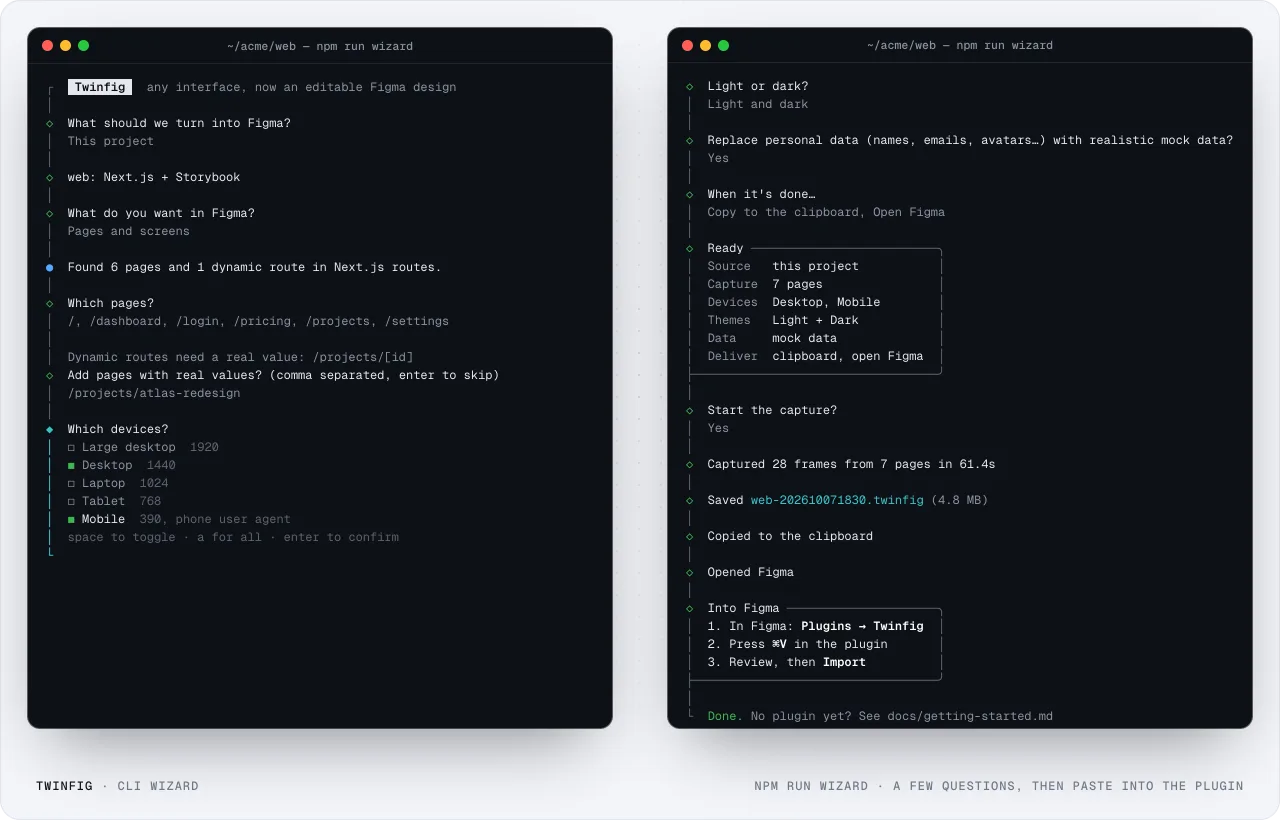
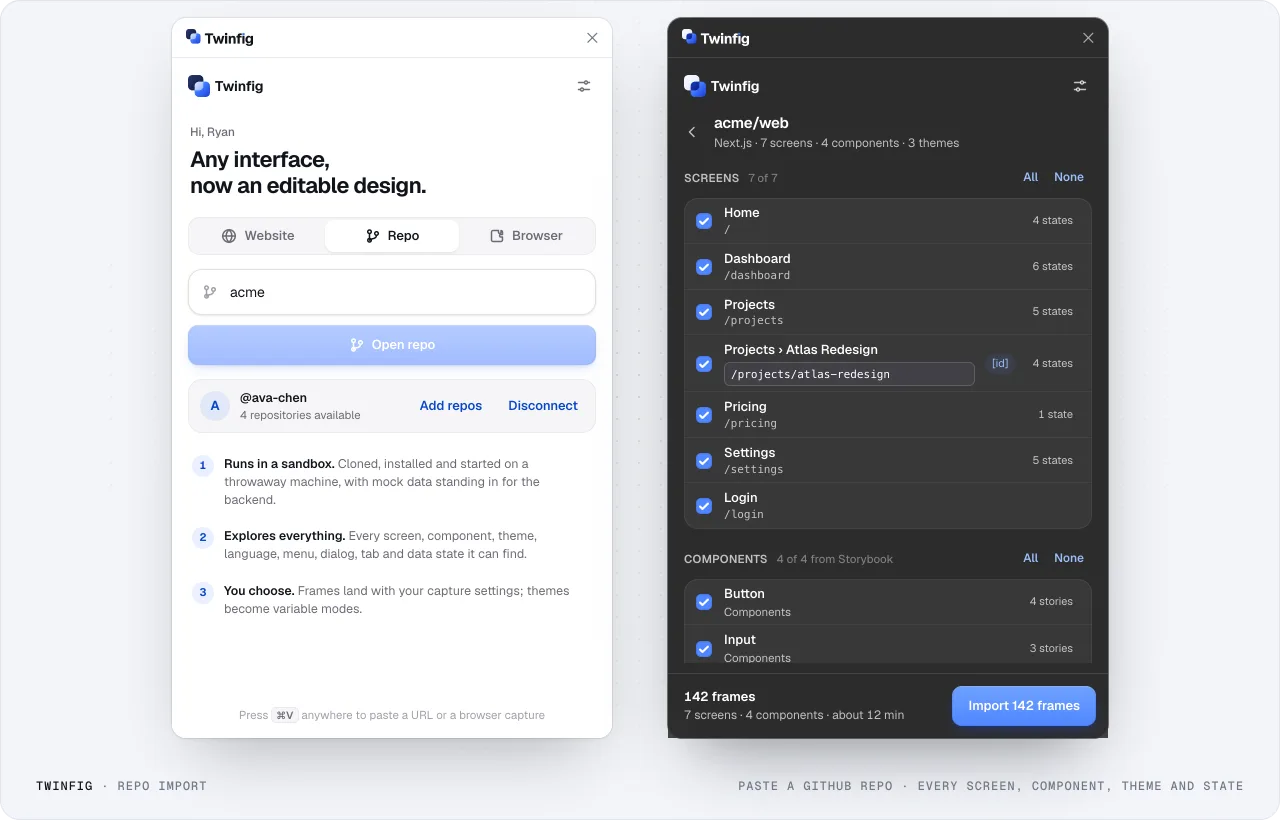
Point the CLI at a repository. It installs, starts the dev server or Storybook, finds the routes and captures each one into a bundle for the plugin.
In your day
Capture, paste, move on.
Three ways in, depending on where the UI lives.
01
A page you’re working on
Press ⌥⇧P in Chrome for the full page, or ⌥⇧E to pick one element with the arrow keys. The capture goes to the clipboard; press ⌘V in the Twinfig plugin.
02
Every width and theme at once
In the popup, turn on 1440, 1024, 768 and 390 and set Theme to Both. Widths under 600 also get a mobile user agent. One capture, every frame.
03
Hover, focus and open states
Set States to All. Hover, Focus, Active, Open, Disabled, Checked and Selected are tried where they apply, and states that look the same as the default are dropped.
04
A whole repository
Run npm run wizard. It finds your routes, asks for devices and themes, captures every page and copies the bundle to the clipboard, ready to paste.
In the product
What it looks like.
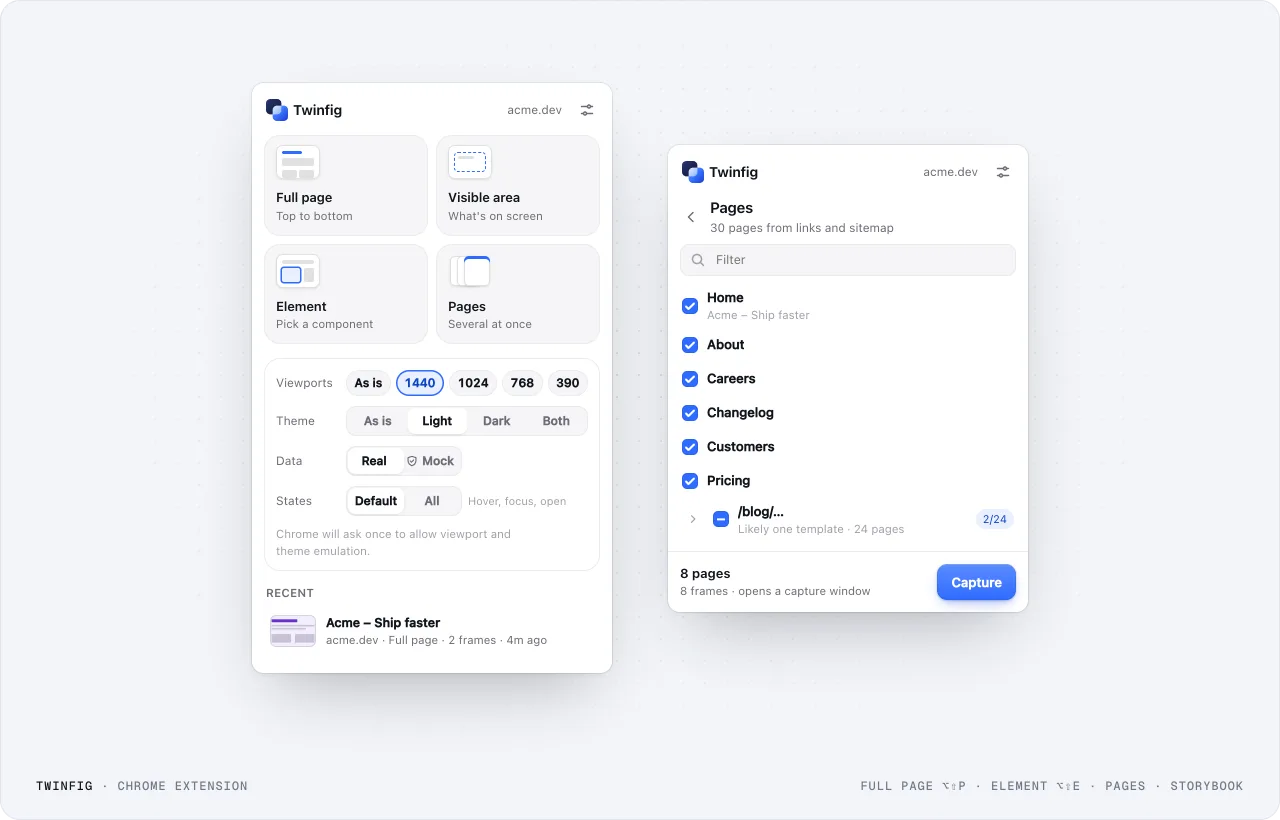
Chrome extension: capture modesFull page, visible area, one element or several pages, at the viewports, themes and states you choose.
CLI wizardA few questions in the terminal, then paste into Figma.
Repo importEvery screen, component, theme and state found in a repository.
What you get
Not a screenshot. A design you can work in.
Twinfig reads the rendered page the way a browser does, then rebuilds it the way a designer would.
Capture anything you can see
Public pages import straight from Figma. For everything else, use your own browser and session: a full page, the visible area, one element or several pages, with real customer data swapped for mock data on the way out.
In a logged-in dashboard the Twinfig popup opens, Data is switched to Mock, and the element picker moves from a name to a row to the whole customers table. The captured table arrives in Figma with names, emails, phones and avatars replaced.
Teo Parkteo.park@example.com(206) 555-0176StarterPast due
Real layers, not fragments
Text stays text. Auto layout is applied only where it reproduces the page exactly, and repeated UI becomes components.
A typical import with hundreds of per-letter layers switches to Twinfig’s clean tree; the headline, an auto layout row and a button instance are inspected in turn.
Drafts / DashboardShare
Typical importTwinfig
Layers412
Group 184
Rectangle 92
S
h
i
p
t
h
e
d
a
s
h
b
o
a
r
d
Group 185
Vector
E
v
e
r
y
m
e
t
r
i
c
Rectangle 93
Group 186
Vector
Vector
Group 184
Rectangle 92
S
h
i
p
t
h
e
d
a
s
h
b
o
a
r
d
Group 185
Vector
E
v
e
r
y
m
e
t
r
i
c
Rectangle 93
Group 186
Vector
Vector
Layers14
Hero
Ship the dashboard.
Every metric your team checks…
Actions
Button · Primary
Button · Secondary
Metrics
MetricCard
MetricCard
MetricCard
Dashboard — 1440
Live · updated 2 min ago
Shipthedashboard.
Every metric your team checks, in one calm view.
Open dashboardInvite team
Revenue$48,210+12%
Customers1,284+4.2%
Churn1.9%−0.3%
Button
VariantPrimary
SizeLarge
MainButton
Storybook in, component sets out
Open your Storybook, pick components, and every story becomes a variant. Themes and viewports become extra variant properties.
Button and Badge are picked in the Twinfig popup on a Storybook. Eight Button variants appear in a Figma component set across Light and Dark themes, then a Badge set, then the instance properties.
localhost:6006
StorybookFind components /Components
ButtonPrimarySecondaryGhostDisabled
Badge
Input
Light1440
Continue
Storybook found
Capture stories as components
Capture 7 stories
Button
ContinueVariant=Primary, Theme=Light
ContinueVariant=Secondary, Theme=Light
ContinueVariant=Ghost, Theme=Light
ContinueVariant=Disabled, Theme=Light
ContinueVariant=Primary, Theme=Dark
ContinueVariant=Secondary, Theme=Dark
ContinueVariant=Ghost, Theme=Dark
ContinueVariant=Disabled, Theme=Dark
Badge
NeutralVariant=Neutral
SuccessVariant=Success
WarningVariant=Warning
ButtonVariant Primary ▾Theme Dark ▾
Tokens and prototypes, included
Colors used more than once become variables, type becomes text styles, and links between pages become prototype connections.
Captured colors, type and spacing appear as Figma variables, three pages are linked with prototype connections, and the prototype is presented from Pricing to Sign up.
Local variables9
Captured from localhost:5173
color/ink11141C
color/paperFAFBFE
color/accent2F6BFF
color/muted717888
color/borderE1E5EE
Aatype/display56 / 100%
Aatype/body16 / 150%
#radius/card24
#space/416
Components4
Button · Primary
Button · Secondary
PlanCard
NavBar
Home
FieldnoteDocsPricing
New Sync v2Design from what’s real.
Capture any page and keep designing in Figma, with real layers.
Get startedDocsCaptureRefine
Pricing
FieldnoteDocsPricing
Pricing that scales
Starter$0/mo 3 projects 7-day history Email helpGet started
Pro Popular$24/mo Unlimited AI notes Priority helpStart trial
Sign up
Create your accountStart your 14-day free trial.ContinueHave an account? Sign in
Present
Sign up2 / 2
FieldnoteDocsPricing
Pricing that scales
Starter$0/mo 3 projects 7-day history Email helpGet started
Pro Popular$24/mo Unlimited AI notes Priority helpStart trial
Create your accountStart your 14-day free trial.ContinueHave an account? Sign in
You
The details
The small things a handoff depends on.
Settings live in both the plugin and the extension, so every capture comes out the way your team works.
1440LightDark
FieldnoteProductPricingDocsSign up
New Sync v2 is here
Notes that write themselves.
Fieldnote turns every meeting into a tidy, searchable doc your team actually reads.
Start freeBook a demo
TranscriptsReady in secondsSummariesReady in secondsSearchReady in seconds
1024LightDark
FieldnoteProductPricingDocsSign up
New Sync v2 is here
Notes that write themselves.
Fieldnote turns every meeting into a tidy, searchable doc your team actually reads.
Start freeBook a demo
TranscriptsReady in secondsSummariesReady in secondsSearchReady in seconds
768LightDark
FieldnoteProductPricingDocsSign up
New Sync v2 is here
Notes that write themselves.
Fieldnote turns every meeting into a tidy, searchable doc your team actually reads.
Start freeBook a demo
TranscriptsReady in secondsSummariesReady in secondsSearchReady in seconds
390LightDark
FieldnoteProductPricingDocsSign up
New Sync v2 is here
Notes that write themselves.
Fieldnote turns every meeting into a tidy, searchable doc your team actually reads.
Start freeBook a demo
TranscriptsReady in secondsSummariesReady in secondsSearchReady in seconds
Every viewport and theme
Capture 1920, 1440, 1024, 768 and 390 in light, dark or both. Each combination becomes its own frame.
fieldnote.appScanning…506 pages
/
/pricing
/blog/*412 pages 3 of 412
/docs/*86 pages 3 of 86
8 pages · 2 templatesImport
Scan a whole site
Twinfig reads the sitemap and links, then groups template pages so you import three blog posts, not 412.
Customers 1,284Real Mock
DWDana Whitfielddana@northwind.ioTeam
MBMarcus Bellmarcus.bell@gmail.comPro
PRPriya Ramanpriya@raman.designStarter
Mock data, consistently
Names, emails, phones and IDs swap for stand-ins. One person keeps one face everywhere, from any DiceBear style.
FieldnoteProductPricingDocsSign inStart free
Plans for every teamStart free. Upgrade when your team does.
Starter$0/mo
3 projects
7-day history
Get started
ProPopular$12/mo
Unlimited projects
AI summaries
Start trial
Team$24/mo
Shared spaces
SSO and audit log
Contact sales
Chrome
FieldnoteProductPricingDocsSign inStart free
Plans for every teamStart free. Upgrade when your team does.
Starter$0/mo
3 projects
7-day history
Get started
ProPopular$12/mo
Unlimited projects
AI summaries
Start trial
Team$24/mo
Shared spaces
SSO and audit log
Contact sales
Figma
Check it against the browser
Every frame carries a hidden reference screenshot. Drag to compare the import with what Chrome rendered.
Changelog 1440 · Light
What’s new
Oct 7Dark mode for docsNew
Oct 2Shared spaces for teams
Sep 24Faster search across notes
Recapture Updated just now
Recapture in place
Frames remember their URL, width, theme and language. Select one, recapture, and it updates where it sits.
⌥⇧PFull pageClipboard
⌥⇧EPick an elementClipboard
⌘VPaste in FigmaCanvas
Keyboard first
Capture without opening anything. Shortcuts work on any page, and the capture is on your clipboard when it’s done.
Your browserClipboardFigma
0 B uploaded
Private by default
Browser captures go to your clipboard and local history. Nothing is uploaded to capture a page you’re logged into.
Twinfig for FigmaFigma Community · PluginInstall Installed
Twinfig for ChromeChrome Web Store · ExtensionAdd Added
Pinned
localhost:5173
FieldnoteProductPricingDocsSign up
Notes that write themselves.Every meeting, summarized for your whole team.Start freeBook a demo
TranscriptsEvery call, word for wordSummariesDecisions and next stepsdiv.card · 208×124SearchFind any moment fast
⌥⇧EPick element
Copied ⌘V in Figma
Drafts / localhost
Home — 1440
Nav
Hero
Notes that write themselves.
Cards
Card
Card
Card
Home — 1440
FieldnoteProductPricingDocsSign up
Notes that write themselves.Every meeting, summarized for your whole team.Start freeBook a demo
TranscriptsEvery call, word for wordSummariesDecisions and next steps208 × 124SearchFind any moment fast
4 components Auto layout · gap 16
Add the Figma plugin. Add the Chrome extension too for logged-in apps, localhost and Storybook.
Compared with other tools
Built for teams that design from what they ship.
How Twinfig lines up against the importers designers already know, and a plain screenshot.
Capability
Twinfig
html.to.design
Figma’s extension
Screenshot
Import a live URL
Yes
Yes
Yes
As a flat image
Pages behind a login, localhost
Your own browser session
Via its extension
Your own browser session
Yes
Pick a single element
Yes
Yes
Yes
No
Many viewports × light and dark in one run
Yes
Yes
Not advertised
One at a time
Repeated UI becomes components
Across every page
Not advertised
Not advertised
No
Colors and type as variables and text styles
Yes
Not advertised
Not advertised
No
Links become prototype connections
Yes
Not advertised
Not advertised
No
Storybook stories to component sets
Yes
Not advertised
Not advertised
No
Mock data for customer information
Before it leaves the page
Not advertised
Not advertised
Captured as is
Recapture a frame in place
Yes
Not advertised
Not advertised
Take a new one
Based on each tool’s public product pages as of October 2026. “Not advertised” means we couldn’t find the capability described, not that it can’t exist. html.to.design and Figma are trademarks of their owners.
Roadmap
What landed, and what's next.
Vote for what you want next. Shipped items are in the current build.
Asked for 2
Native iOS and Android
Read the accessibility hierarchy from the simulator or emulator and pair it with screenshots.
Smarter components
Group near-matches that differ only in text or icon into one component with properties, and detect variants.
In progress 1
Repo → Figma from inside Figma
Paste a GitHub URL into the plugin and let the capture service run the same pipeline in the cloud.
Shipped 5
Repo → Figma
Point the CLI at a repo. It installs, starts the dev server or Storybook, finds your routes and captures each one into a bundle for the plugin.
Light and dark as variable modes
Capture a page in both themes and each color becomes one variable with Light and Dark modes; dark frames are pinned to Dark.
Interactive states
Hover, focus, active and open menus or dialogs, captured from an element or a story and added as variants like State=Hover.
CSS grid → auto layout
Equal-column grids become wrapping auto layout with the grid's gaps instead of absolute positions.
Expo and React Native on the web
Apps running through their web target are detected, captured at phone widths and named from testID and roles.
FAQ
Questions designers ask.
Does Twinfig need a build step or SDK in my app?
No. The Chrome extension reads the page as rendered, so there is nothing to install in your project.
Will it work with an app behind a login?
Yes. The extension captures in your own browser with your own session, so anything you can see works.
What is Twinfig?
Twinfig is a Figma plugin and a Chrome extension that turn any website or app into an editable Figma design. Import public pages, or a whole site, straight from Figma; capture anything else from Chrome. Pages arrive with real text layers, finished animations, exact auto layout, components, variables, text styles and prototype connections, not as a screenshot.
Can I import an entire website from inside Figma?
Yes. Type a URL in the plugin and choose Scan site. Twinfig finds the site’s pages from its sitemap or by following links, groups them by path and collapses repetitive templates such as blog posts, so you pick the pages that matter and import them in one run, linked as a prototype. No extension needed for public sites.
Does it work on localhost, staging and pages behind a login?
Yes. The Chrome extension captures in your own browser with your own session, so anything you can see works: dev servers, preview deploys, staging behind SSO and admin dashboards.
Do my captures leave my machine?
Not when you capture with the extension. The capture goes to your clipboard, your local history and, if you choose, a .twinfig file. The one network call is to DiceBear when mock avatars are on, and it sends only the mock name. Public website imports from the plugin go through Twinfig’s capture service.
What about real customer data in a logged-in app?
Switch Data to Mock before you capture. Names, emails, phone numbers, addresses, card numbers and other IDs, handles and avatars are replaced with realistic stand-ins inside the browser, before anything reaches the clipboard. Each person keeps one consistent stand-in across every page and viewport.
Which frameworks are supported?
All of them, because Twinfig reads what Chrome renders: React, Next.js, Remix, Vue, Nuxt, Svelte, Astro, Tailwind, plain HTML and anything else that ends up in the DOM.
How does Storybook capture work?
Open your Storybook and click Twinfig. It reads the story index, you pick components, and every story is captured and combined into a Figma component set with one variant per story. If you capture more than one theme or viewport, those become extra variant properties.
Will it break my Figma file with thousands of layers?
No. Twinfig drops wrapper elements that only exist for layout, keeps text as whole text layers, turns repeated UI into instances and builds in small batches so Figma stays responsive. A typical marketing page arrives as a few hundred clean layers.
How is Twinfig different from a screenshot or other HTML-to-Figma importers?
A screenshot is a picture. Most importers give you absolute positions and text split into fragments. Twinfig rebuilds the page as a designer would: style runs inside real text, auto layout only where it matches the page exactly, components, tokens and prototype links.
Is Twinfig affiliated with Figma?
No. Twinfig is an independent product. Figma is a trademark of Figma, Inc.
 html.to.design